Scenario Analysis
It is possible to create one or more different scenarios for each analysis period using the Scenario Analysis List page.
- Extracts the entry values for a specific period
- Apply allocations and drivers
- Each scenario can have a custom allocation sequence
- Allows analysis through views by dimensions
- Allows the analysis of data through the functions of the Analysis by dimensions and of the Financial statements.

From the C/A Analysis Card, by executing the “Update Driver History” and then “Update Analysis C/A” functions, it is possible to execute all the allocations that have been entered in the allocation list or only those selected using the “Sequence allocations ”and also calculate the tariff of the production cost center.
| Action | Description |
|---|---|
| Update Driver History | updates the performance entries of the drivers encoded in the system |
| Update Analysis C/A | executes the allocation cards in “Certified” status, in order of Level and Sequence / Code |
| Update Dymension Analysis | updates the data relating to the analysis by C/A dimension possibly set in the “Analysis by dimension” field |
When the processing is completed, the “C/A Status” field is automatically filled in and changes from empty to “Allocated Entries”

**Allocation sequence: “Copy Allocation Sequence” function **
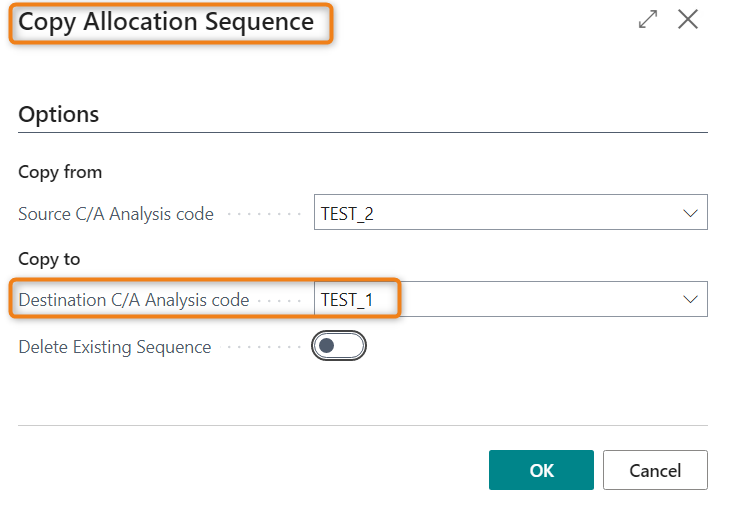
The function allows you to copy from a starting scenario selected by the user, the sequence of allocations to the destination scenario. If the function is performed without enabling the “Delete Existing Sequence” option, the system will add the copied allocations to those possibly present within the same scenario.
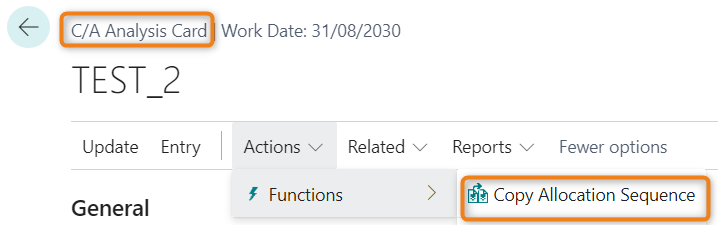
By clicking on the function, the system proposes the following form in which it automatically indicates the code of the starting analysis scenario (in the example TEST_2), while it is necessary to enter the code of the scenario in which you want the allocation sequence to be copied (in the example TEST_1:
Verify data generated through the allocation process
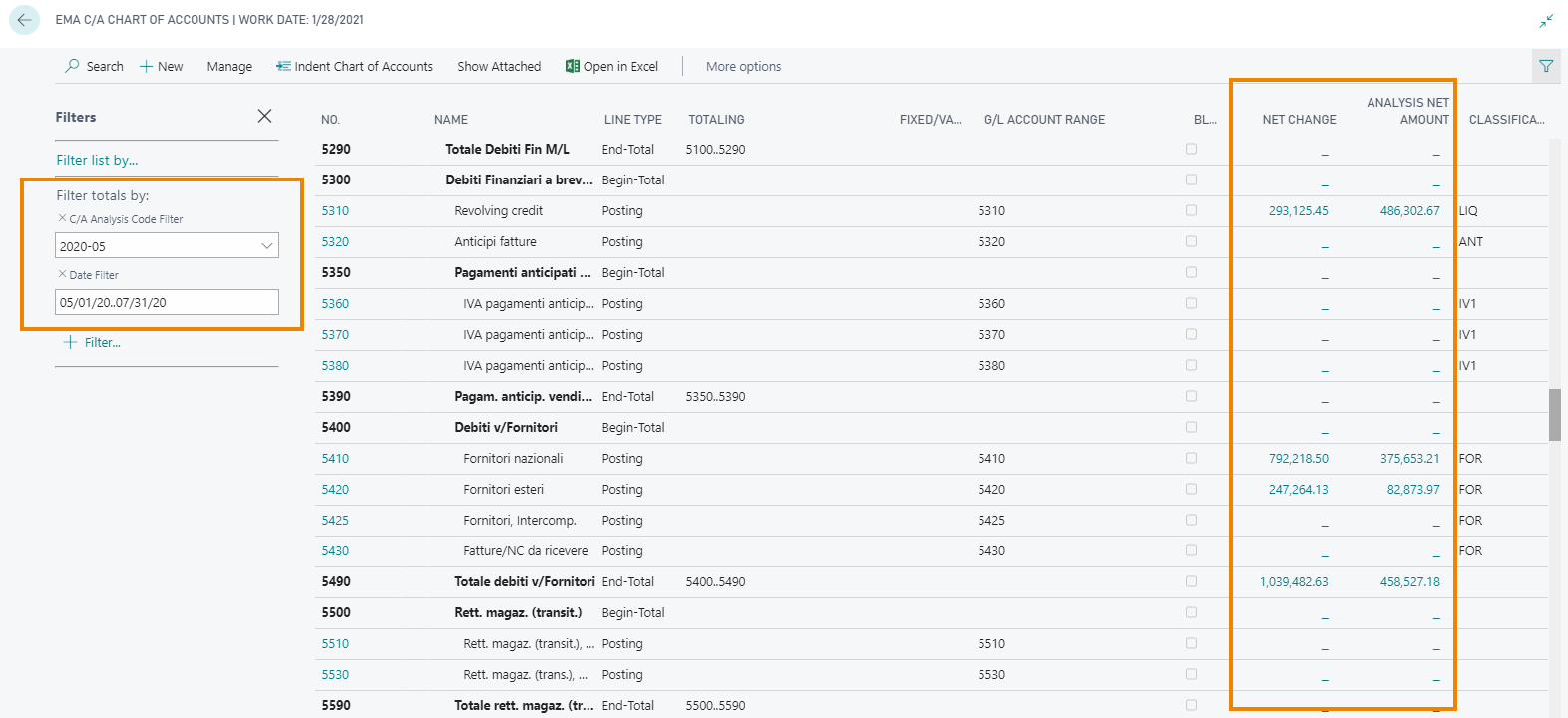
It is possible to directly open the Chart of cost accounts from the C/A analysis card by clicking on Related->Analysis->Chart of C/A: it will already be filtered for the C/A analysis that we have just performed. Alternatively, you can access the “Chart of cost accounts” page and apply the appropriate filters:
| Campo | Description |
|---|---|
| Net Change | balance deriving from the sum of the entries transferred from G/L and of those possibly recorded directly in C/A |
| Analysis Net Amount | balance deriving from the allocation process |
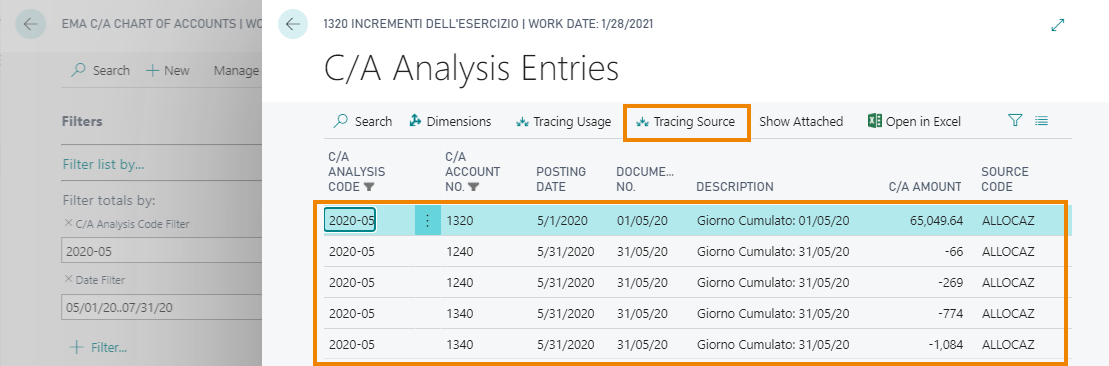
| Through the Drilldown of the “Analysis Net Amount” column it is possible to access the detailed entries, which can also be analyzed using the “Tracing Source” action. | |
 |
|
| If a new execution of the same analysis becomes necessary, for example following the posting of further accounting entries or following changes of some allocations, it is possible to execute the form again, previously clearing the previous allocation. |
**Financial Reports – Reading analytics data from a specific C/A analysis scenario **
The settings below allow you to view within a Financial Report the balances, by account or groups of accounts, calculated in a specific scenario of C/A analysis, that is, after having carried out the cost reversal process in cost accounting. On the “Financial Reports” page, create a new financial report to which to combine a specific “Row Definition” and a specific “Column Definition”. On the “Edit Row Definition” page, set the rows you want to display in the Financial Report:
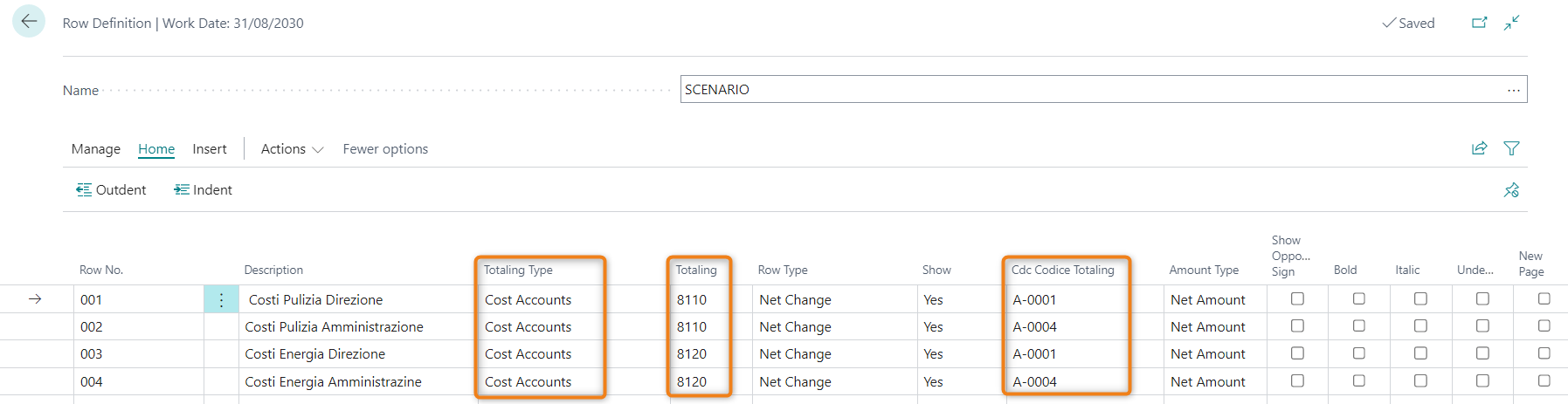
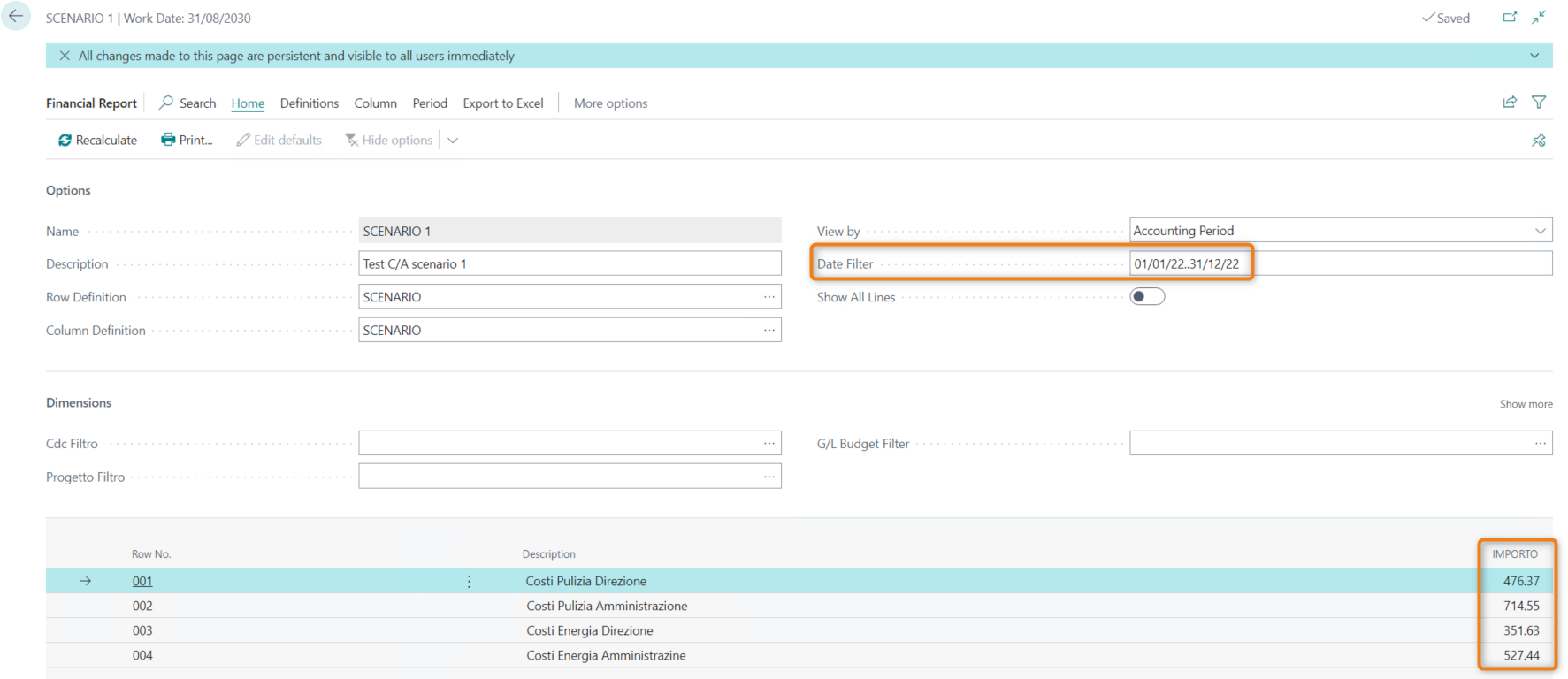
In the “Totaling type” column insert the “Analytic accounts” option and in the “Totaling” column insert the account, or accounts, for which the balance must be shown. For each row, it is also possible to select the dimensions for which the account balance must be filtered (example: column “Cdc Codice Totaling”). On the “Edit Column Definition” page, set the columns you want to display in the Financial Report. It is necessary to set the “Column Type” indicating the Balance period, and fill in the appropriate column “C/A Analysis Code” indicating the code of the C/A analysis scenario from which you want the system to recover the post-allocation balances (in the example SCENARIO_1).

At this point we can view the data by accessing the “Edit Financial Report” page.

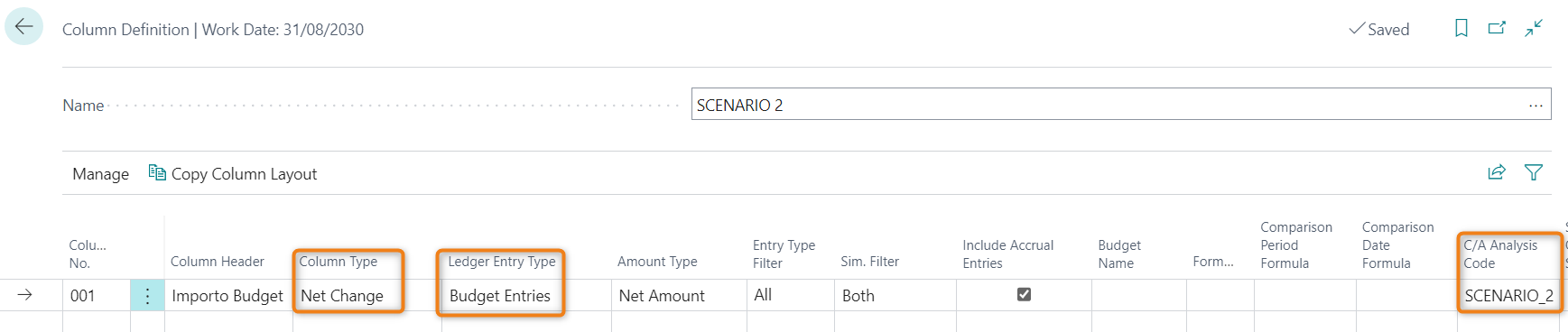
If you want to view data deriving from a Budget C/A analysis scenario, the only difference with the above is to set the value in the “Ledger Entry Type” field of the “Edit Column Definition” page with the value “Budget Entries”.
Feedback
Was this page helpful?
Glad to hear it! Please tell us how we can improve.
Sorry to hear that. Please tell us how we can improve.