Allocation
Allocation can be used for:
-
Group values: sum all costs detected by accounting into a single C/A account that identifies a cost object
-
Spread values: Divide the costs found into a single general ledger account into multiple C/A accounts that identify different cost objects.
The Allocation Cards allow allow the overturning of indirect costs charged to account / dimensions, to other account / dimension combinations (e.g.: Cost Centers, Divisions etc.). The drivers used in the allocations can be:
- Fixed: they are allocation percentages indicated in the lines of the allocation card.
- Dynamic: the system reads the “driver entries” tables on the basis of which it calculates the allocation percentages to be used.
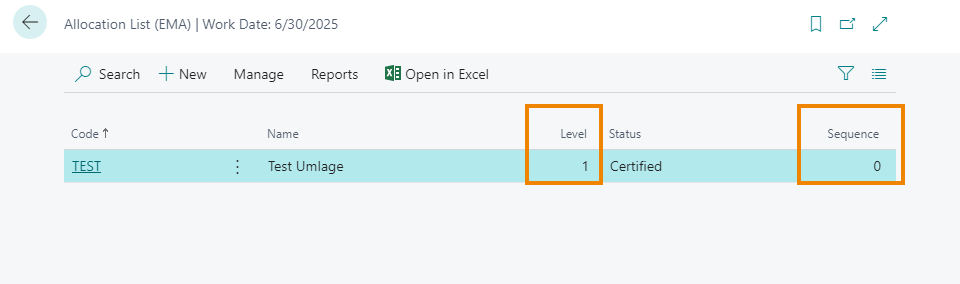
The different allocation cards are performed in increasing order of Level; at the same level, execution takes place according to the “Sequence” field or, alternatively (if the sequence value is equal to zero), according to the “Code” field (alphanumeric order).
Allocation List Card
Note
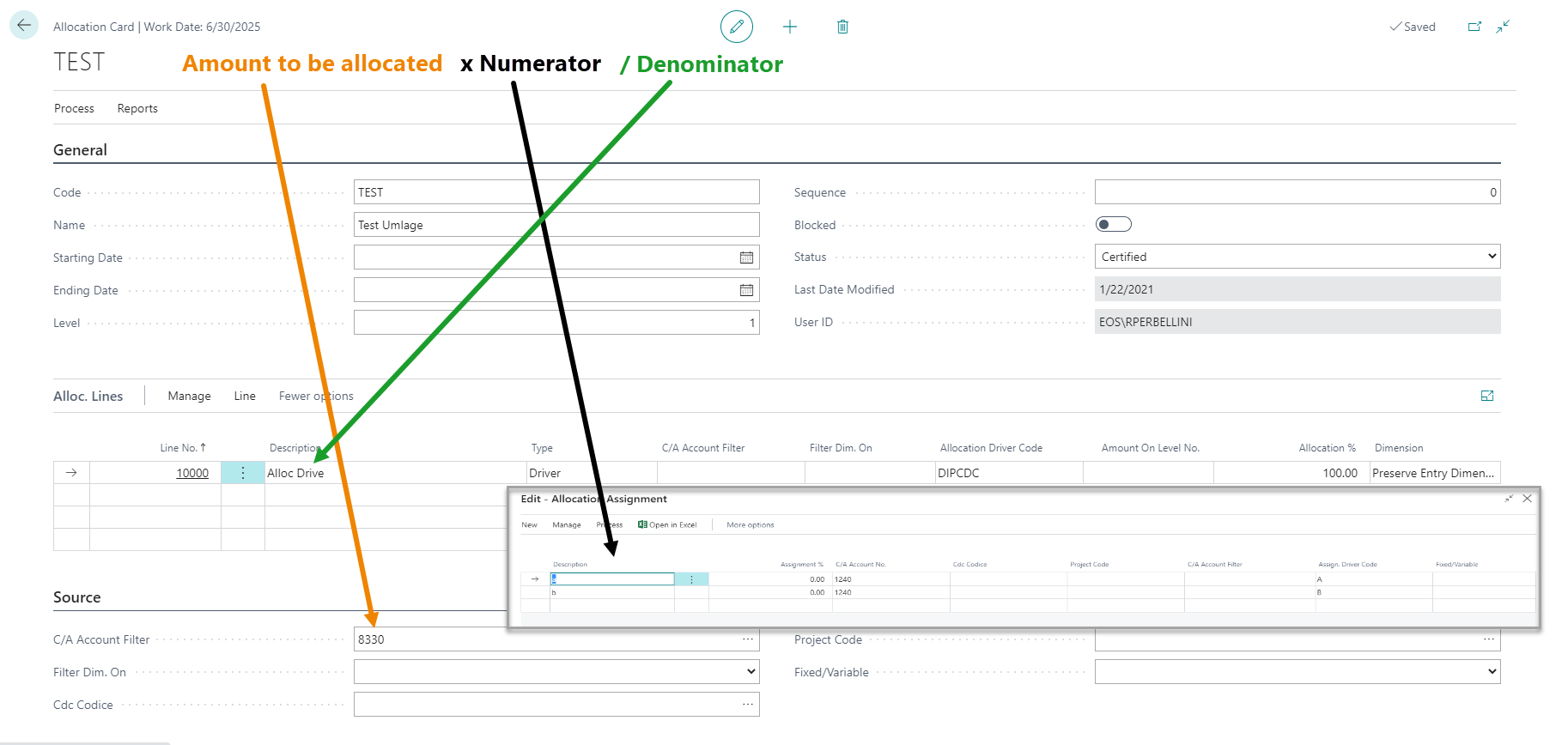
The formula showed allows to determine the amount to be allocated to the destination (e.g. Work Center, Division, etc.).
The Allocation Card contains four tabs:
- General
- Source
- Alloc. Lines
- Assegnments
General Tab

In this section you must enter the allocation code with its description. The “Starting Date” and “Ending Date” fields indicate, if entered, the validity period of the allocation card. A card can also be made obsolete by activating the “Blocked” option.
The system will only execute the valid allocation cards, with the value “Certified” in the “Status” field.
**Source Tab **

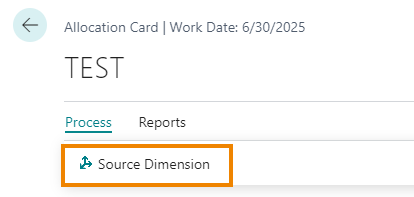
In this section, the accounts and dimensions that identify the balance to be allocated must be entered. The dimension filter can be performed on the global dimensions or also on the other dimensions: in this case you will have to use the “Source Dimension” action:
Alloc. Lines Tab

Allows you to indicate how the balances identified in the Source Tab are to be allocated. The basic fields are as follows:
Type: values:
-
Percentage: the allocation takes place on the basis of fixed % entered by the user in the “Assignments” page.
-
Variable: the allocation is made depending on dynamic percentages calculated by the system based on the balances (e.g..: a specific Division or Product Line cost is allocated according to the relative sales turnover).
-
Driver: the allocation is made depending on dynamic percentages calculated by the system based on the rules defined in the specific Driver (e.g: No. of employees per CC, machine / man hours worked, MQ of an area).
Driver Allocation: if you have selected “Driver” in the Type field, enter the Driver code to be used in this field
** % Allocation**: indicates the percentage to allocate of the balance resulting from the filters applied in the Source tab
Dimension:
-
Preserve Entry Dimension -> the source dimensions for the allocated balances are preserved (e.g. to move the balance from one C/A account to another)
-
Modify Entry Dimension -> all the dimensions of the original entries are retained except for the allocation object dimension (e.g.: cost center)
-
Substitute Entry Dimension -> in this case all the dimensions of the original movements are erased and the destination ones are assigned, inserted in the “Assignments” lines
Assignments Tab

It allows you to define the destination of the allocation: if the destination account is not indicated (field “C/A Account No.”), the allocation takes place on the source account itself. The values of the destination dimensions will change.
Allocation list: “Copy Allocation” function
This feature allows you to create a new allocation card starting from an already existing card. The new file created will be identical to the starting one in terms of header, lines, assignments and filters. From the “Allocation list (EMA)” page or directly within the allocation form, you can access the function:

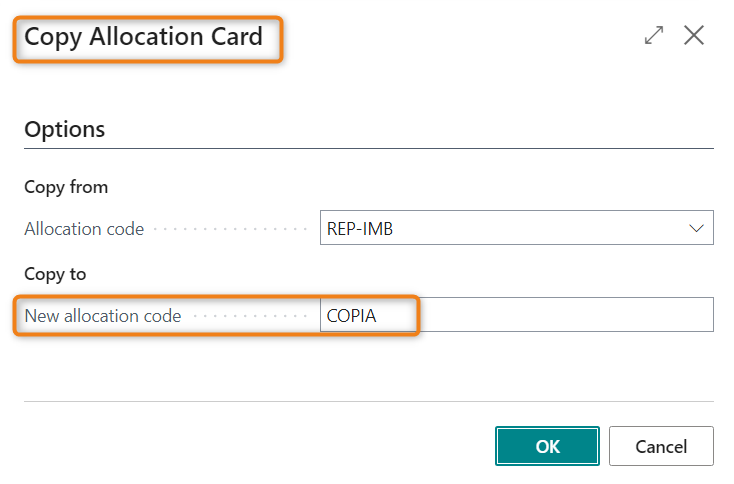
By clicking on the function, the system proposes the following form in which it automatically indicates the code of the starting allocation list (in the example REP-IMB), while it is necessary to enter the new code to be assigned to the allocation list which will be created (in the example “COPIA”):
At the end of the operation, the newly created card contains all the header, line, assignment and filter information contained in the original card. The user can intervene to modify the form, where necessary, and can subsequently proceed with its certification.
Feedback
Was this page helpful?
Glad to hear it! Please tell us how we can improve.
Sorry to hear that. Please tell us how we can improve.