Basic UI Functions
Gordon have a consistent UI, some elements are the same in each pages
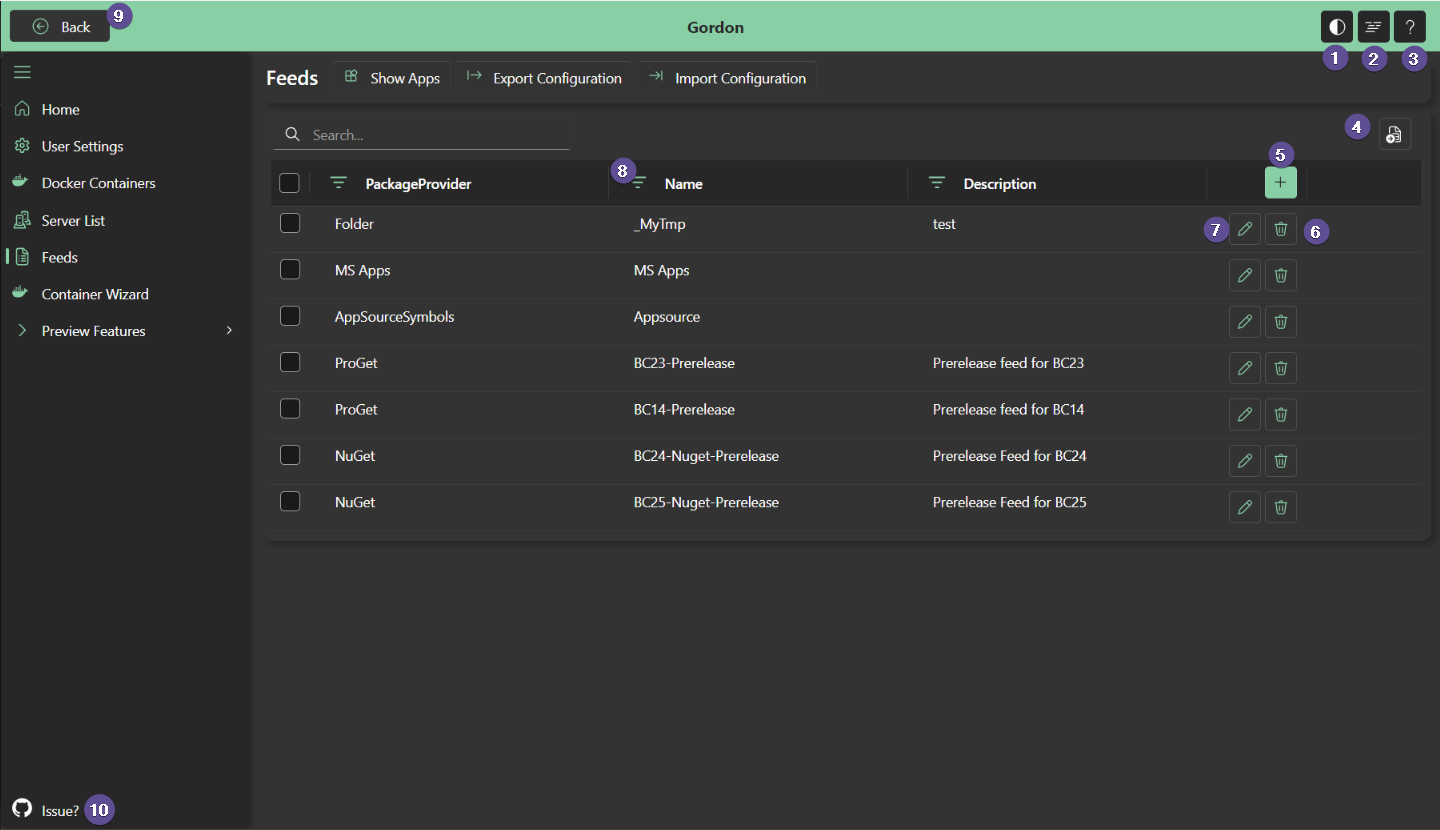
| number | Description |
|---|---|
| 1 | Toggle Dark/Light mode |
| 2 | Open the Log |
| 3 | Show the Help for the current page |
| 4 | Export table as excel file |
| 5 | Create a new Item (it will open a panel asking for the data) |
| 6 | Will delte the Item |
| 7 | Will edit the Item |
| 8 | Toggle Search Filter and Toggle the sorting order |
| 9 | When pages that are not the HomePage you will be able to navigate back |
| 10 | Will open the GitHub repository for sending feedback/feature requests/issues |
**When you are in a card page, usually you will have at the bottom of the page the SAVE button**
Home
This is the landing page for the Gordon App.
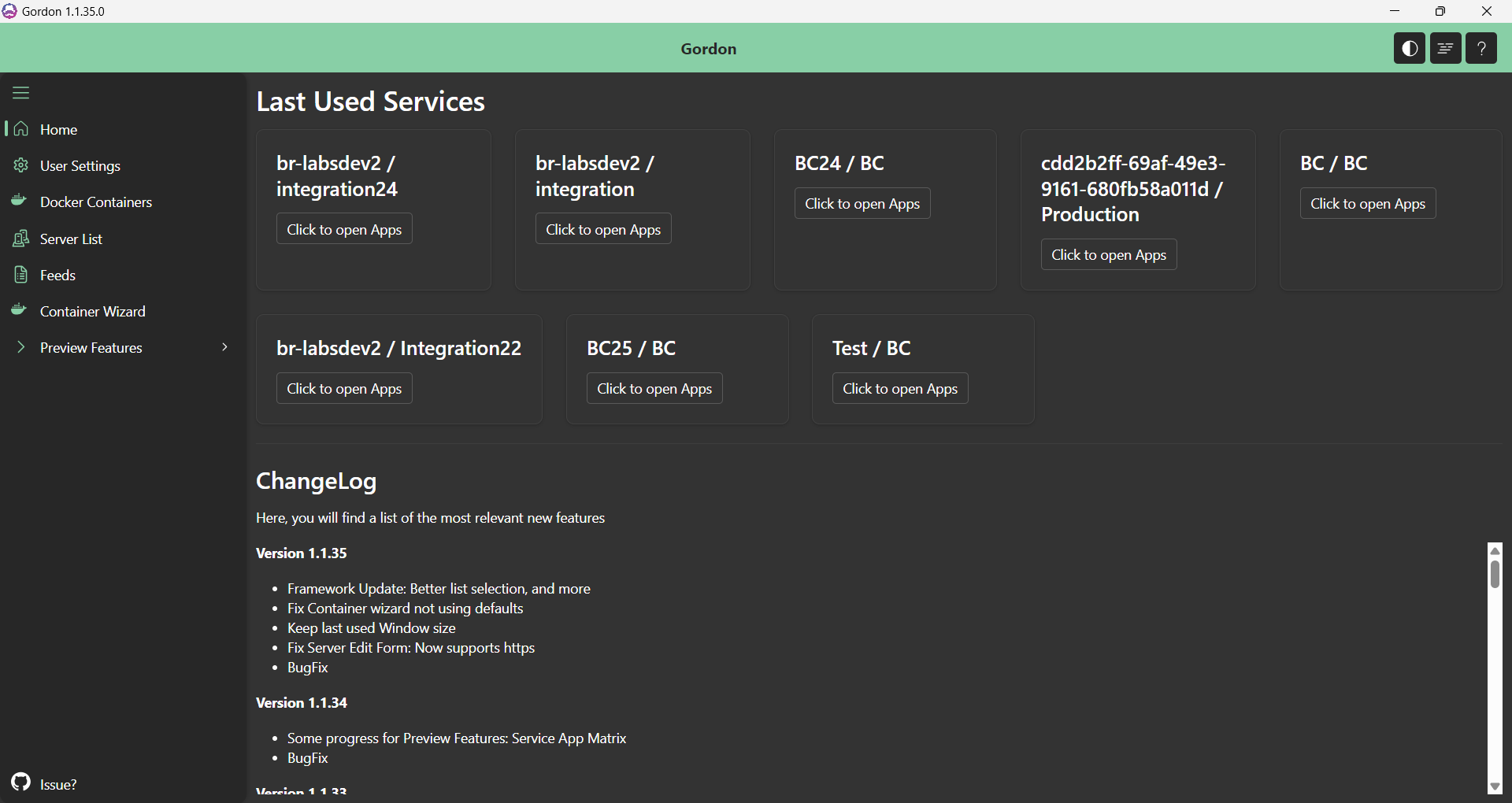
In this page you will see:
- Quickstart: a wizard to help you get started with Docker, package feeds, container creation, and the VS Code extension
- Last Used Services: A list of the 8 latest services of which you opened the App Manger
- The ChangeLog
User Settings
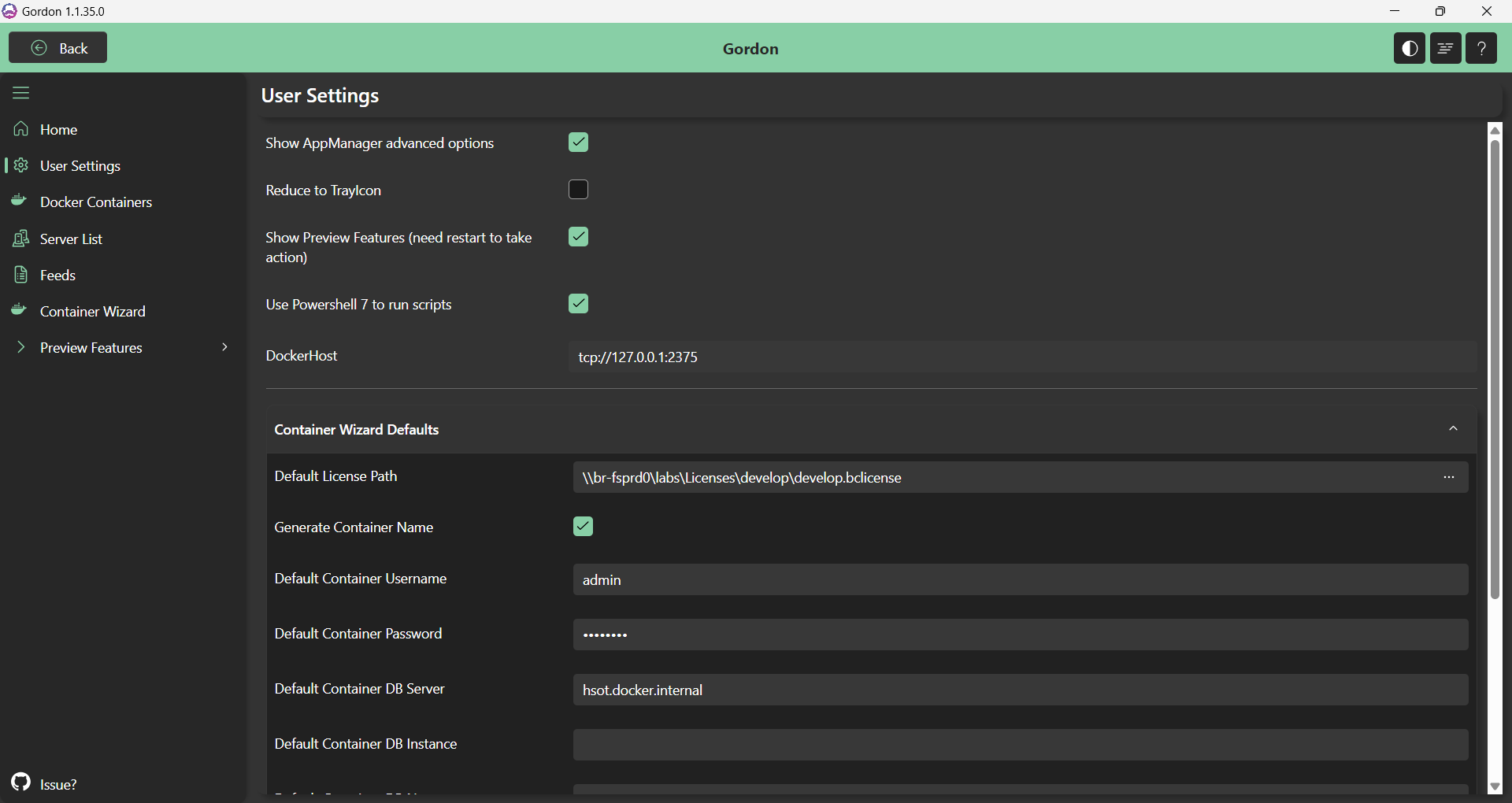
Configure global application behavior: toggle advanced install options, hide Microsoft apps, manage preview features, set Docker host, and configure container wizard defaults (license path, database credentials, etc.).
| Field Name | Description |
|---|---|
| Show AppManager advanced options | If enabled will show in the app manager the dependecy resolution mode |
| Reduce to TrayIcon | if enabled, the app will not close but will be reduced to the tray icon |
| Show Preview Features | will show in the menu the Preview Features (that are still in beta) |
| Use Powershell 7 to run scripts | When executing powershell scripts, choose to use Powershell 7 or Powershell 5 |
| Docker Host | If you are using a different docker host, use this field to change it (usually it is empty) |
| CONTAINER WIZARD DEFAULTS | all this settings are related ONLY for the container wizard |
| Default License Path | Where to get the license |
| Generate Container Name | if true it will generate the container Name based of Version and Country |
| Default Container Username | default username when using NavUserPassword |
| Default Container Password | default password when using NavUserPassword |
| Default Container DB Server | default DB Server when using External SQL Database |
| Default Container DB Instance | default DB Instance when using External SQL Database |
| Default Container DB Name | default DB Name when using External SQL Database |
| Default Container DB Username | default DB Username when using External SQL Database |
| Default Container DB Password | default DB Password when using External SQL Database |
| Default Container Bak File | default bak file location when using a Custom DB |
Page actions
| Name | Description | Page Action | Grid Action |
|---|---|---|---|
| Export Settings | Export all settings (feeds, servers, tenants, groups) as .zip | ✅ | ❌ |
| Import Settings | Import settings from a .zip file | ✅ | ❌ |
| Open Logs | Open the application log folder in Windows Explorer | ✅ | ❌ |
Docker
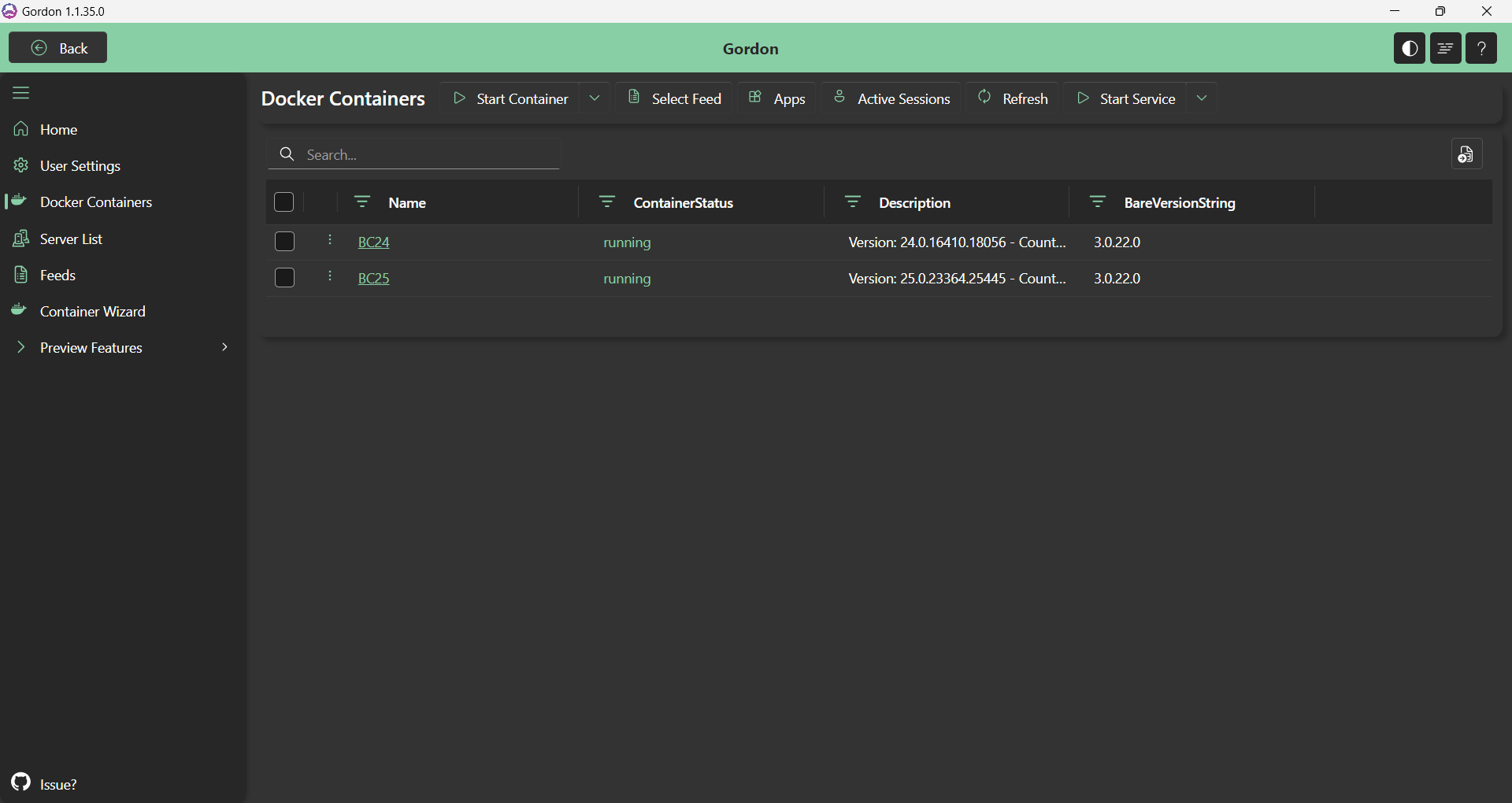
Manage all your Business Central Docker containers from a single list: view running/stopped containers, their status, Gordon Service version, and license info. Use this view to create, start, stop, troubleshoot, and remove containers, as well as manage services and licenses inside each container.
By clicking on the Container Name, you will open the AppManager of the Docker Service
Page Actions
| Name | Description | Page Action | Grid Action |
|---|---|---|---|
| Start Container | Start a stopped Docker container | ✅ | ✅ |
| Stop Container | Stop a running Docker container | ✅ | ✅ |
| Troubleshoot Container | Step-by-step repair modal to recover a non-working container | ✅ | ✅ |
| Remove Container | Permanently delete a container | ✅ | ❌ |
| Select Feed | Assign a package feed to the container’s service | ✅ | ✅ |
| Apps | Open the App Manager for the container’s service | ✅ | ✅ |
| Refresh | Refresh the container list | ✅ | ❌ |
| Start Service | Start the Business Central service inside the container | ✅ | ❌ |
| Stop Service | Stop the Business Central service inside the container | ✅ | ❌ |
| Restart Service | Restart the Business Central service inside the container | ✅ | ❌ |
| Active Sessions | View active user sessions on the container’s service | ✅ | ❌ |
| Event Log | View Windows Event Log entries (Application/Security/Setup/System) | ✅ | ✅ |
| Upload License | Upload a license file to the container | ✅ | ✅ |
| Show License | View the current license details | ✅ | ✅ |
| Service Configuration | View and edit the service configuration settings | ✅ | ✅ |
| Services | View all Business Central services inside the container | ✅ | ✅ |
| Open WebClient | Open the Business Central WebClient in your browser | ✅ | ✅ |
| Install Gordon Service | Install or update the Gordon service inside the container | ✅ | ❌ |
| Add to Environment Group | Add the container to an environment group for bulk operations | ❌ | ✅ |
Server and Service Management
Servers
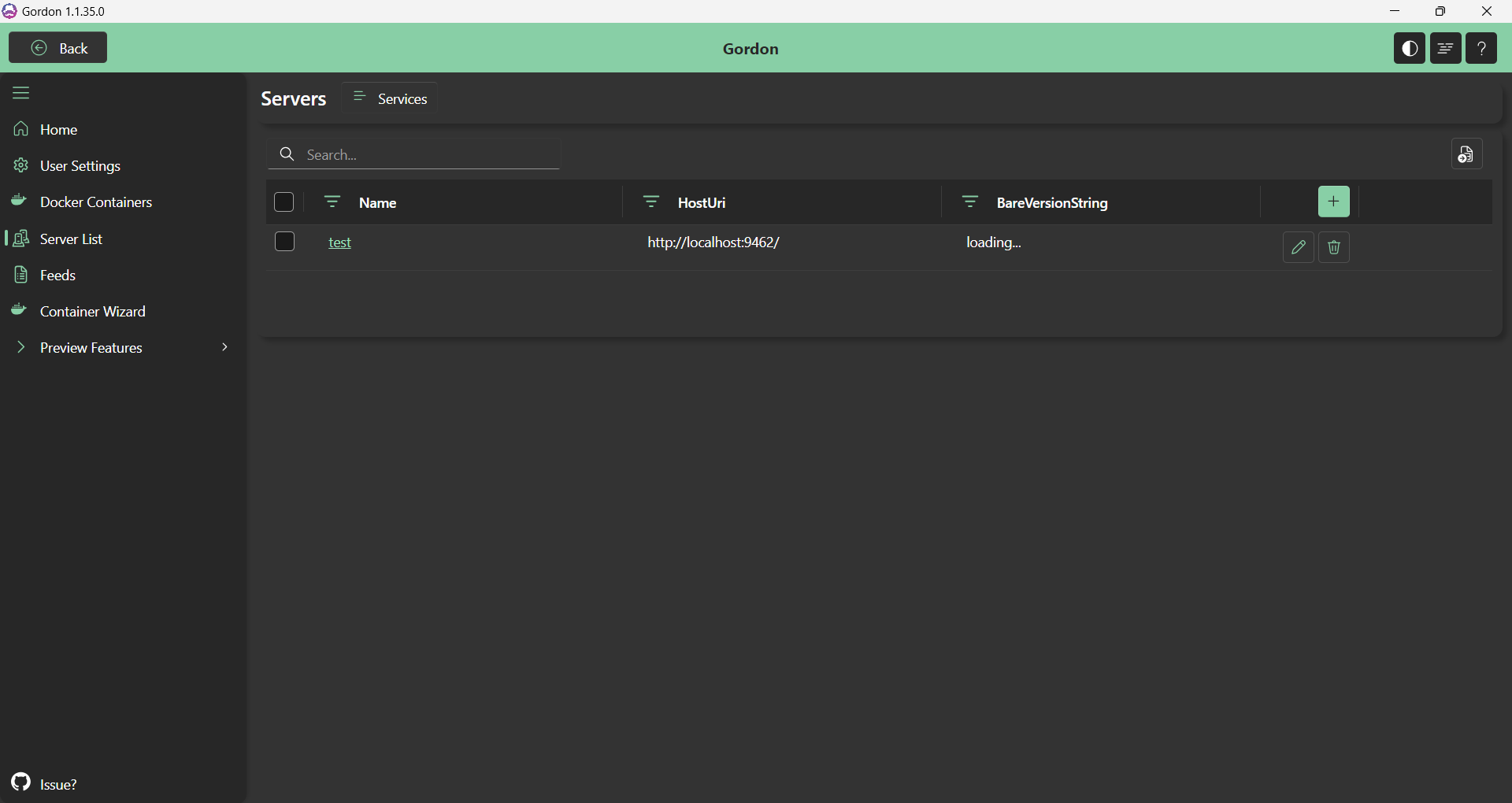
Register and manage your on-premises Business Central server hosts. Each server stores its hostname, port, and API key. The list displays the Gordon Service version for each host.
| Name | Description | Page Action | Grid Action |
|---|---|---|---|
| Services | View all Business Central services on the selected server | ✅ | ❌ |
Services
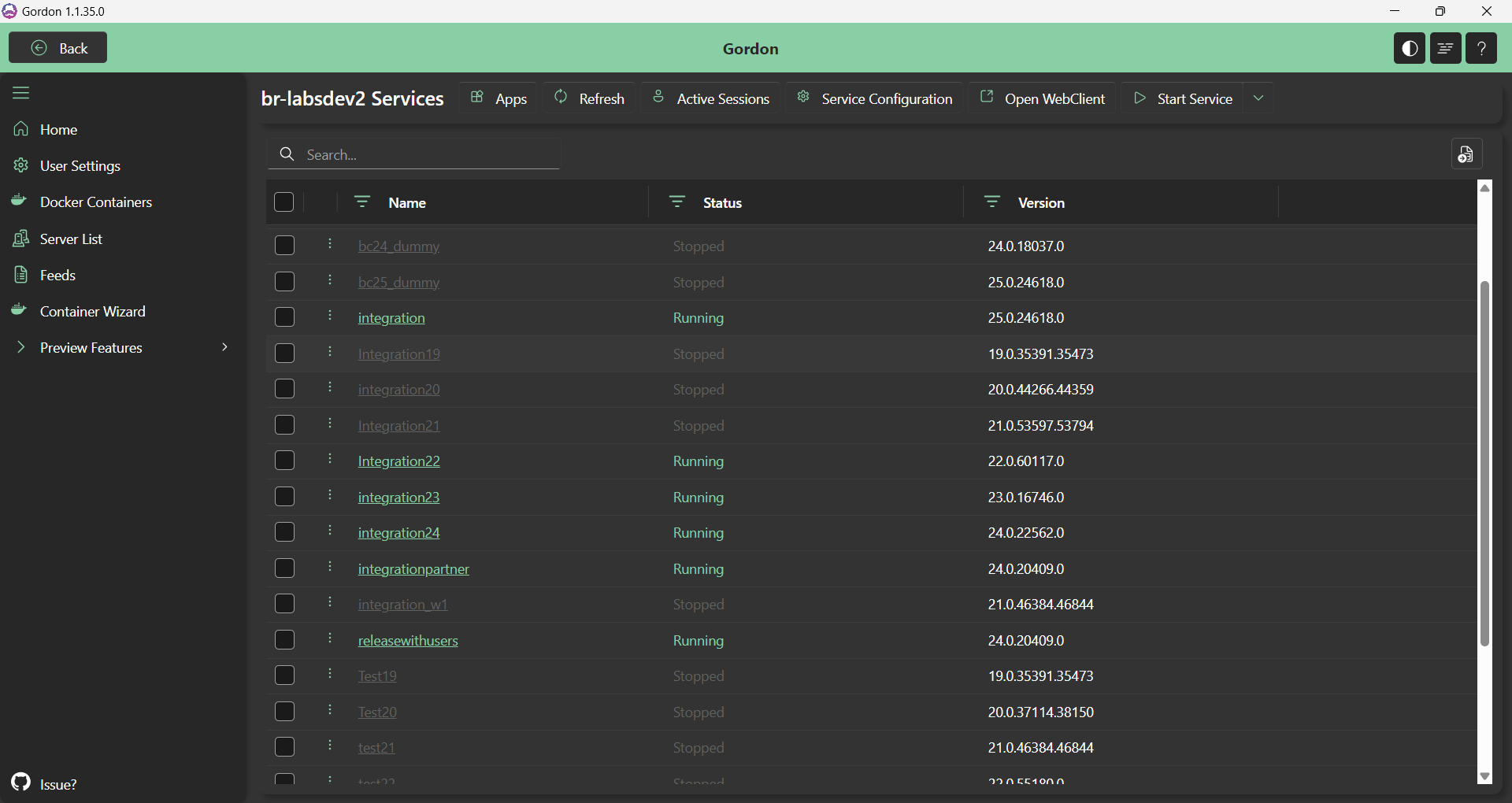
View all Business Central services running on a specific server or container. Shows status, version, database info, and license details for each service.
Page Actions
| Name | Description | Page Action | Grid Action |
|---|---|---|---|
| Apps | Open the App Manager for this service | ✅ | ❌ |
| Refresh | Refresh the service list | ✅ | ❌ |
| Select Feed | Assign package feeds to this service | ✅ | ✅ |
| Start Service | Start the Business Central service | ✅ | ✅ |
| Stop Service | Stop the Business Central service | ✅ | ✅ |
| Restart Service | Restart the Business Central service | ✅ | ✅ |
| Upload License | Upload a license file to the service | ✅ | ✅ |
| Show License | View the current license details | ✅ | ✅ |
| Active Sessions | View active user sessions | ✅ | ❌ |
| Service Configuration | View and edit service configuration settings | ✅ | ✅ |
| Open WebClient | Open the Business Central WebClient | ✅ | ✅ |
| Add to Environment Group | Add this service to an environment group | ❌ | ✅ |
| Event Log | View Windows Event Log entries for this service | ✅ | ✅ |
Package Feeds
Before you can use the package management features in Gordon you need to define your package feeds where you want Gordon to get the packages from. At the moment Gordon supports the following feed types
- NuGet: Can be used for any Nuget (v3+) compatible package feed. This includes Azure Artifacts or any other provider. It supports various configuration parameters. By using it’s default settings, this provider is fully compatible with the Microsoft Nuget AL package feeds.
- Proget / Inedo Upack: If you are using Inedo Proget, you can opt to use it’s proprietary Upack format. This is not to be confused with “Universal Packages” on Azure Artifacts. The latter are not supported.
- Folder: This provider reads packages from any file system folder. UNC paths and network shares are supported. Folders that require authentication are not supported.
- MS Apps: This feed is essentially the same as the NuGet provider, but already uses the correct configuration to access the MS Apps feed.
- AppSourceSymbols: This, similar to MS Apps is also just a NuGet provider with a specific configuration to access the AppSource symbols feed. Be aware that this package feed does not contain actual app packages, but only the symbols packages.
The configuration of feeds (as well as any other configuration) is shared across all of three Gordon clients. That is: Gordon UI, Gordon VS Code and Gordon PowerShell. Any change you make in one client, is automatically available in all others.
Feeds
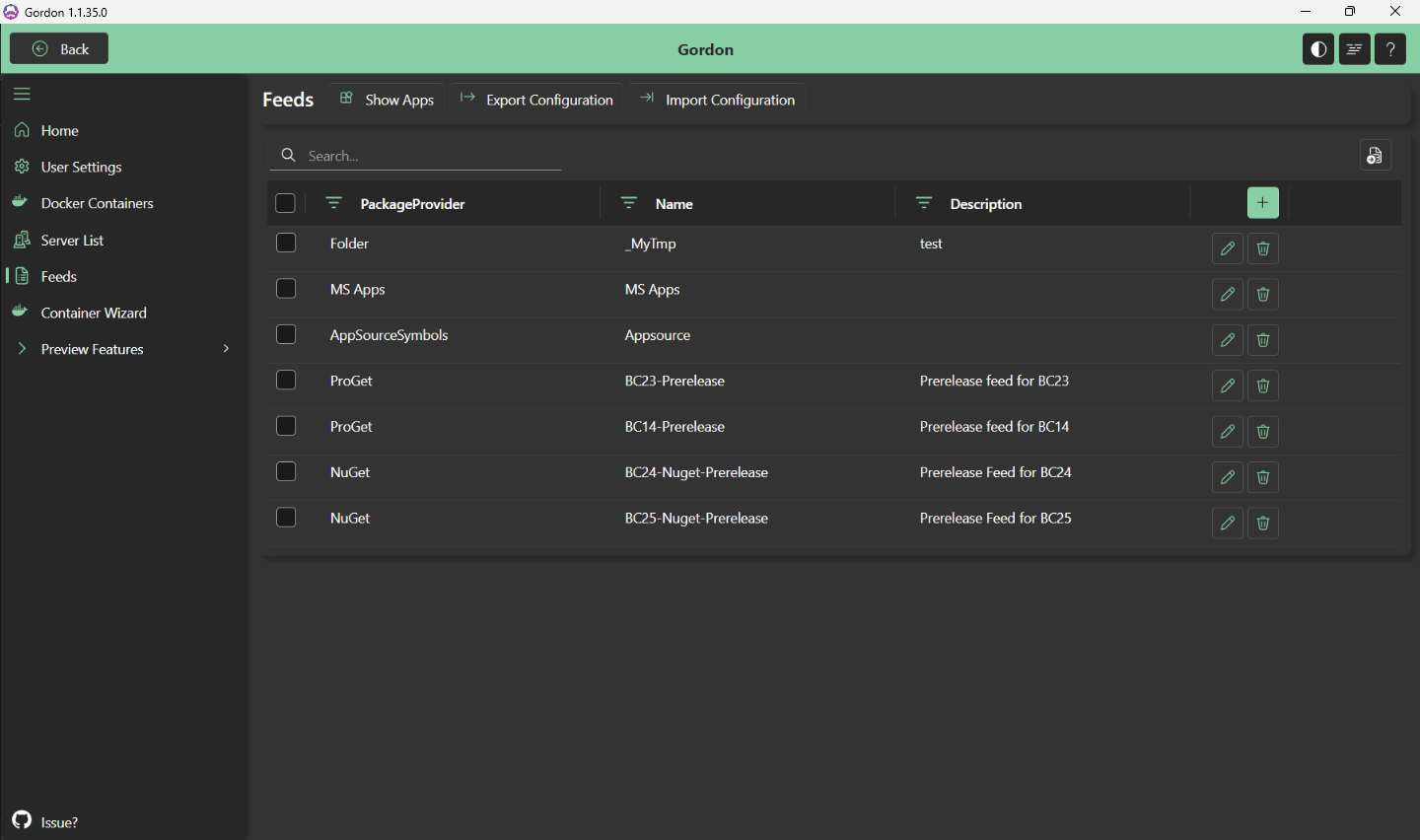
Configure and manage package feeds (AppSource, MS Apps, NuGet, ProGet, Folder) for AL extension distribution. Supports authentication types: None, Credentials, MSAL, Bearer, and DevOps Token.
Page Actions
| Name | Description | Page Action | Grid Action |
|---|---|---|---|
| Show Apps | Browse apps available in the selected feed | ✅ | ❌ |
| Export Configuration | Export all feeds as a .zip file | ✅ | ❌ |
| Import Configuration | Import feeds from a .zip file | ✅ | ❌ |
| Duplicate | Duplicate the selected feed configuration | ✅ | ❌ |
| Add MS Feeds | Auto-create AppSource and MS Apps feeds | ✅ | ❌ |
| Clear Credentials | Clear cached authentication tokens | ✅ | ❌ |
Feed Apps
Browse all extensions available in a specific package feed, with name, publisher, and version details.
| Name | Description | Page Action | Grid Action |
|---|---|---|---|
| Refresh | Refresh the app list | ✅ | ❌ |
| Copy as Dependencies | Copy app details as JSON dependency references | ✅ | ❌ |
| Add to Playlist | Add the selected app to a playlist | ✅ | ✅ |
| Download Packages | Download the selected .app files or batch as .zip | ✅ | ❌ |
| Changelog | View the app’s changelog | ❌ | ✅ |
App Manager
Manage the full lifecycle of Business Central extensions (apps) on a single service. Browse installed and available apps, identify updates, and perform install, publish, uninstall, unpublish, and synchronize operations.
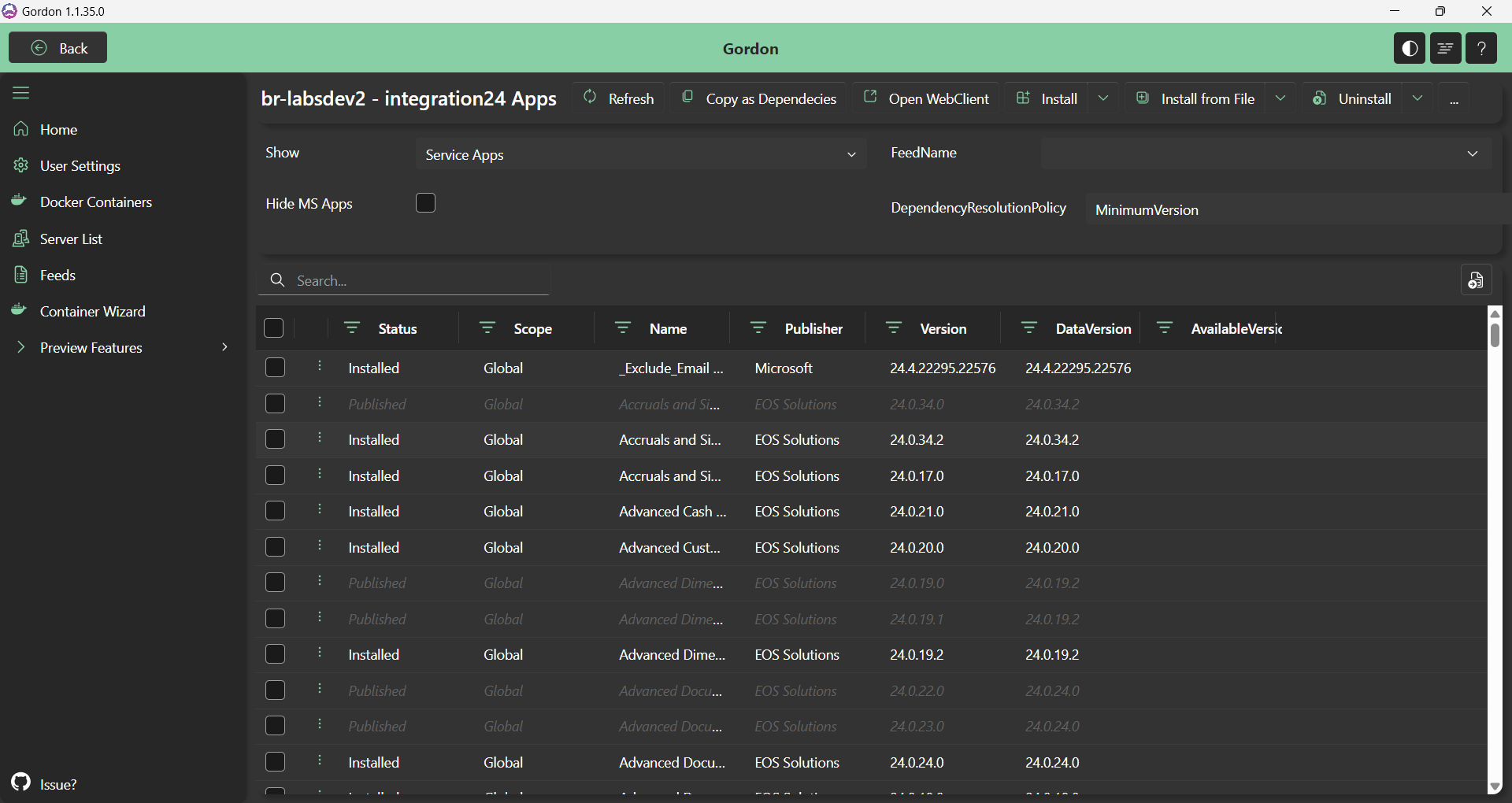
Header Fields
Some fields may be hidden, they can be enabled from User Settings and then by clicking “Show More”.
- show: define what to show in the List:
- Service Apps: The app installed or published in the service
- Feed Apps: The app Available in the selected Feed
- Update Available: The app installe in the service that can be updated from the selected feed
- FeedName: Choose which feed to use: Multiple can be selected
- Hide MS Apps: Will filter out all the apps that have “Microsoft” as publisher
- DependencyResolutionPolicy: How the dependecies need to be resolved.
- Timeout: The installation process has a timeout limit, you can increase this if needed.
Page Actions
| Name | Description | Page Action | Grid Action |
|---|---|---|---|
| Refresh | Refresh the app list | ✅ | ❌ |
| Install | Install the selected app from feeds | ✅ | ✅ |
| Publish | Publish the selected app from feeds | ✅ | ✅ |
| Install (with options) | Install with configurable sync mode, verification, and scope | ✅ | ✅ |
| Install from File | Upload and install an .app file from your filesystem | ✅ | ❌ |
| Install from File (with options) | Install an .app file with configurable options | ✅ | ❌ |
| Publish from File | Upload and publish an .app file from your filesystem | ✅ | ❌ |
| Uninstall | Uninstall the selected app | ✅ | ✅ |
| Clean Dangling Apps | Remove unpublished apps with newer versions installed | ✅ | ❌ |
| Uninstall (Delete Data) | Uninstall and delete the app’s data | ✅ | ❌ |
| Unpublish | Unpublish the selected app | ✅ | ✅ |
| Unpublish (Delete Data) | Unpublish and delete the app’s data | ✅ | ✅ |
| Copy as Dependencies | Copy app details as JSON dependency references | ✅ | ❌ |
| Synch (Synchronize) | Synchronize the app (Add mode) | ✅ | ❌ |
| Synch (ForceSynch) | Force-synchronize the app | ✅ | ❌ |
| Synch (Clean) | Clean-synchronize the app | ✅ | ❌ |
| Open WebClient | Open the Business Central WebClient | ✅ | ❌ |
| Changelog | View the app’s changelog from the feed | ❌ | ✅ |
| Install from Playlist | Install all apps defined in a playlist | ✅ | ❌ |
Container Wizard
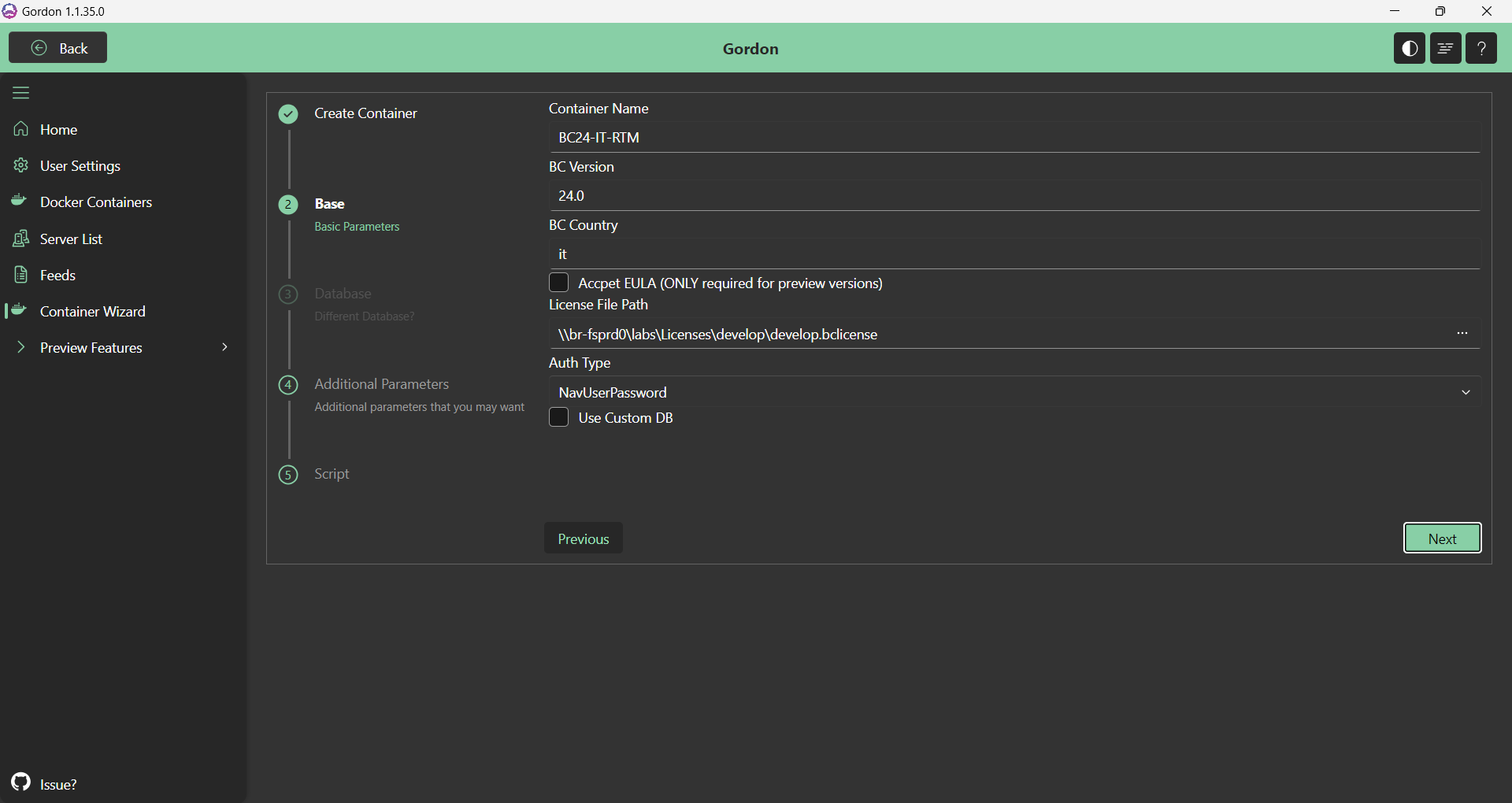
This is a Multi-step wizard to create new Business Central Docker containers. Configure the artifact version and country, database type (Cronus / BakFile / External SQL), authentication, network settings, SSL, AAD, and additional features. Export/import your configuration as JSON for repeatable setups.
It will use raw Docker Images, no BcContainerHelper is needed.
Preview Features
The Menu group Preview Features will contains any Pages that are not currently available. This means that they are not garanteed to work, nor they will become part of the app!
But feel free to try them out and send us any feedback!
Environment Groups
With the Environment Groups, you can logically group different BC Services. This feature let you install and check apps in multiple services at once.
The groups have only two fields: Name and Description
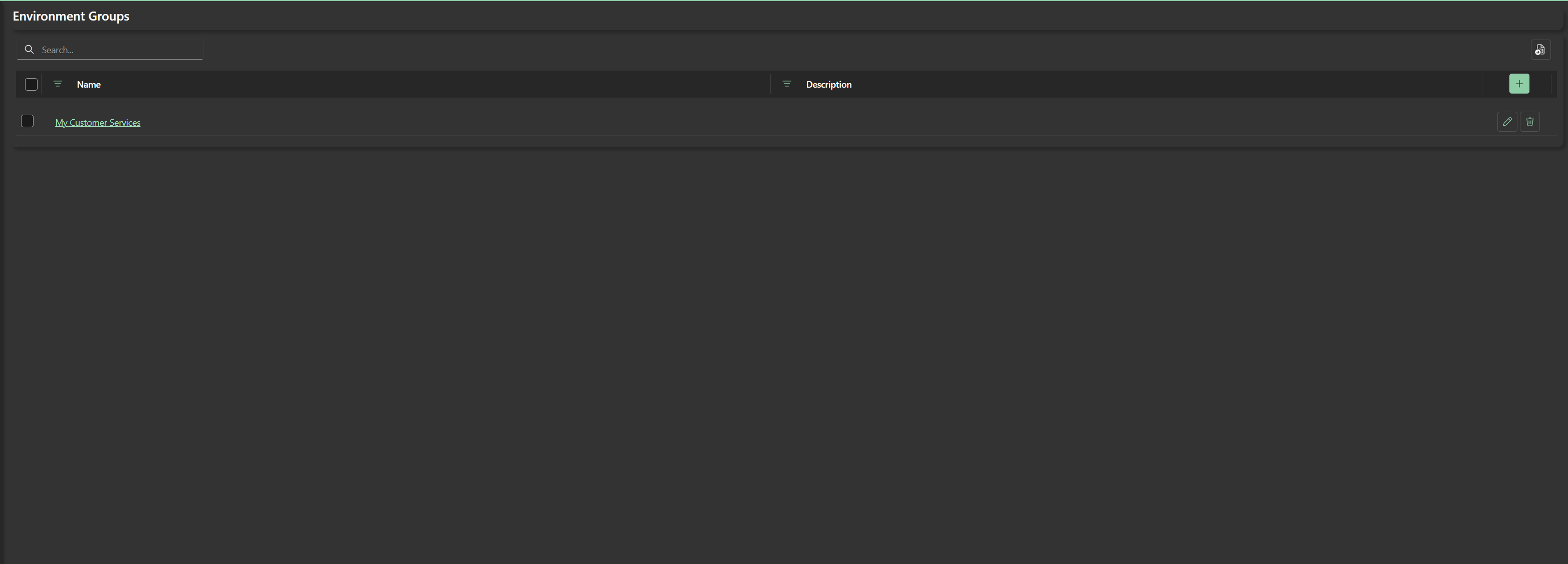
By clicking the Group Name, you will see the assigned services.
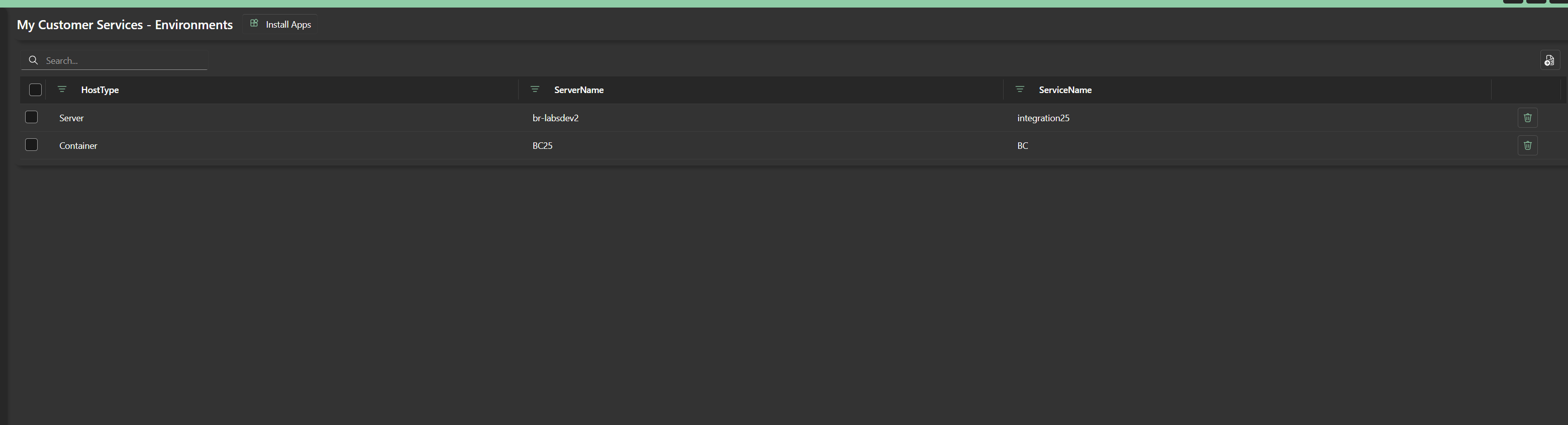
To add a service (or a docker container) to a certain group, there is a dedicated action in Docker Container list and Server’s Services list.
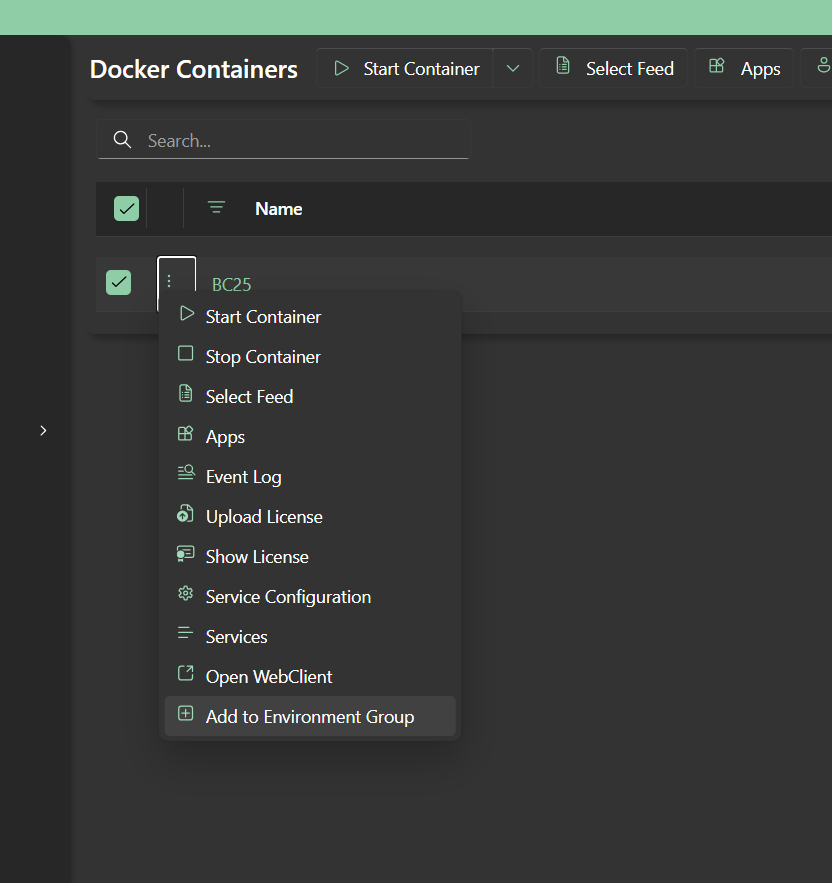
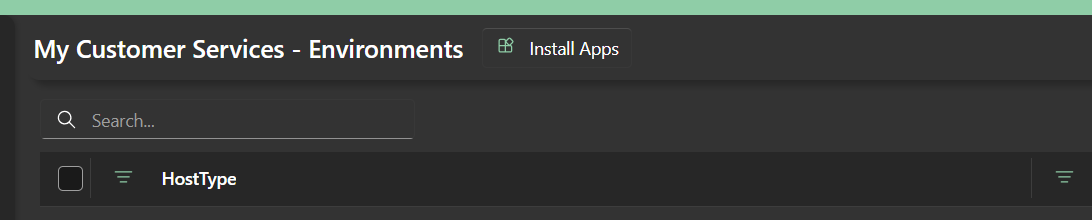
By clicking the action “Install Apps” in the Environment group Page, you will be redirected to an App Manager page.
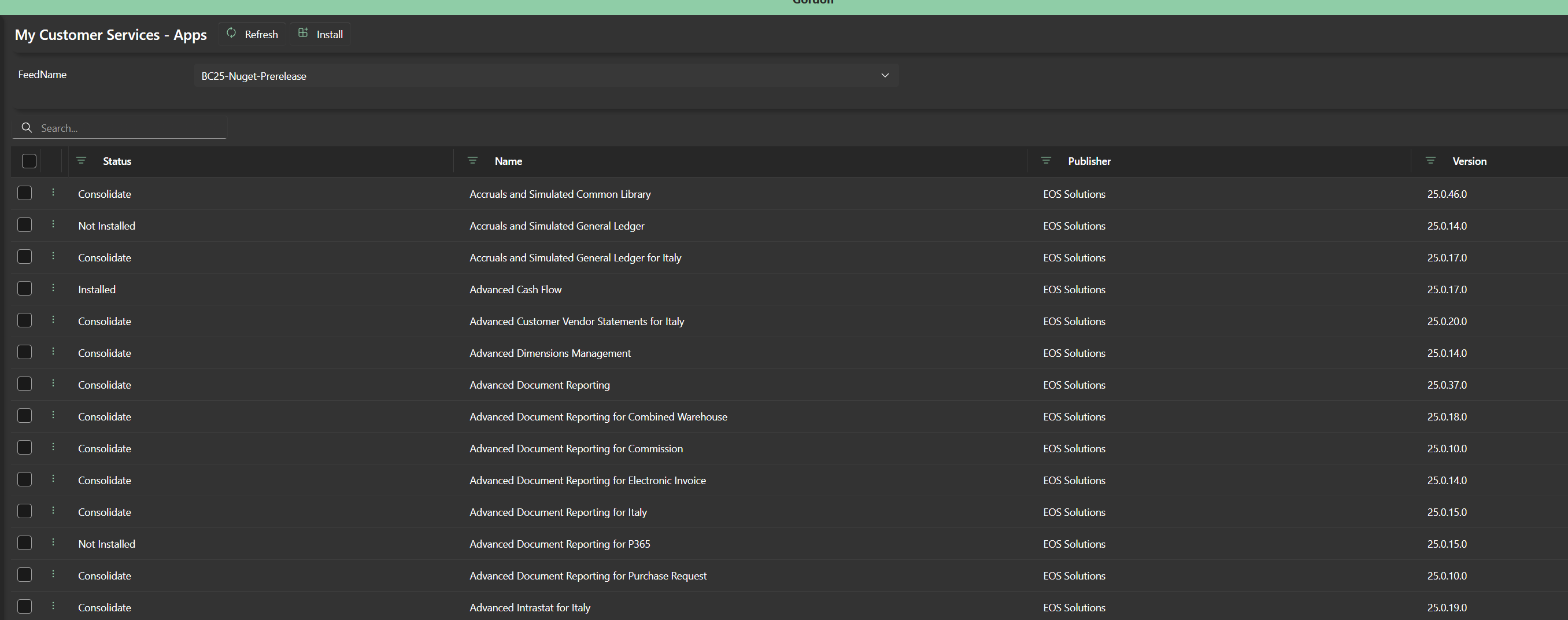
In this list, after selecting one or multiple feed, the list of apps will be loaded. The apps will have one of these status:
| Status | Description |
|---|---|
| Installed | The app is installed and up-to-date |
| Update Available | The app can be updated to a newer version |
| Consolidate | The app is not aligned across all the services. It may be installed in one service but not in another, or they have different versions. |
| Not Installed | The app is not present in all services |
From this page, you may install/update the apps from the selected feed.
Destructive changes (uninstall, Synch, etc.) must be perfoment in the specific app manager.
Feedback
Was this page helpful?
Glad to hear it! Please tell us how we can improve.
Sorry to hear that. Please tell us how we can improve.