Setup (CVC)
Setup ans Customer/Vendor linking”
Setup
In the “Compensation Setup (CVC)” page, you can configure the main parameters required for the operation of the app.

The parameters to be entered are the following.
| Field | Description |
|---|---|
| Comp. Jnl Template Name | Defines the Journal to be used for compensation postings |
| Comp. Gen. Jnl Batch | Defines the Batch to be used for compensation postings. |
| Default Document Type | Sets the document type used by the system for compensation entries. The available options are blank and payment. |
Note
If the Default Document Type is set to Payment, the system will propose the document type Payment for invoices and Refund for credit memos (in the relatively rare case these documents are compensated).
Compensation Journal Batch Setup
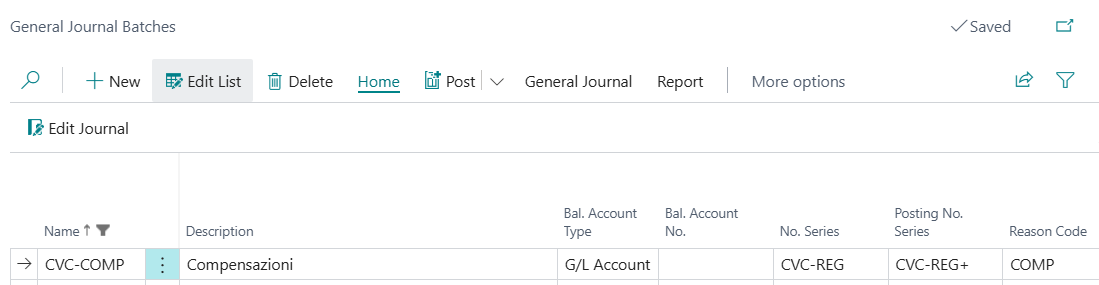
In the Journal intended for compensation, it is recommended to create a specific batch for compensation entries and assign the temporary and/or final number series.
Batch Setup Example
Customer/Vendor Linking
To proceed with compensations, the Customer code must be linked to the corresponding Vendor code. The Customer/Vendor link can be created from:
- Customer/Vendor master data,
- Contact (by setting up a business relation)
Linking via Customer/Vendor Master Data
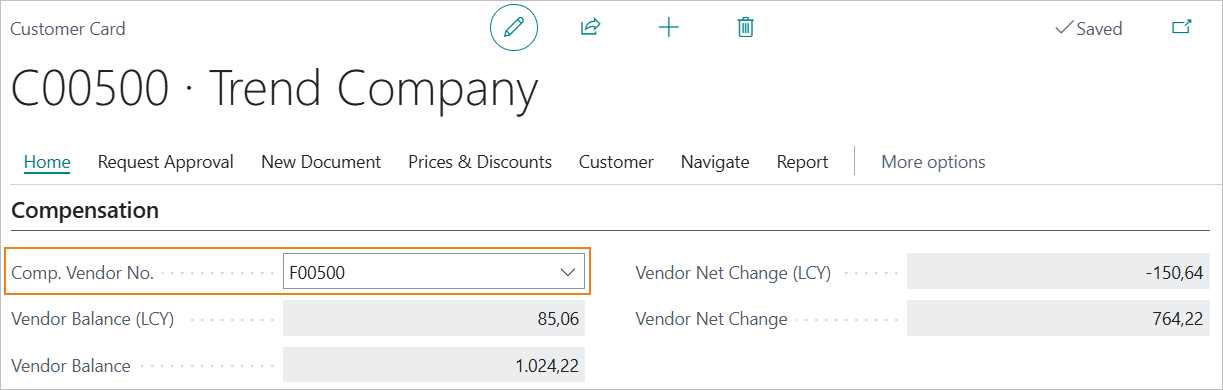
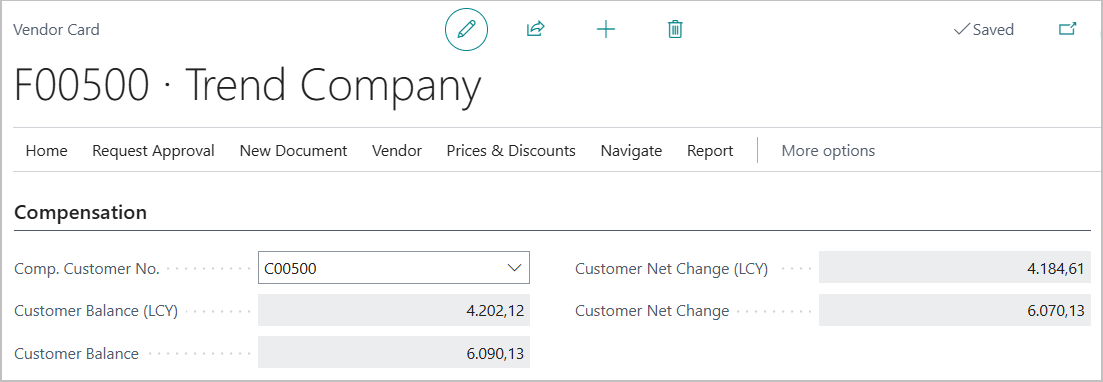
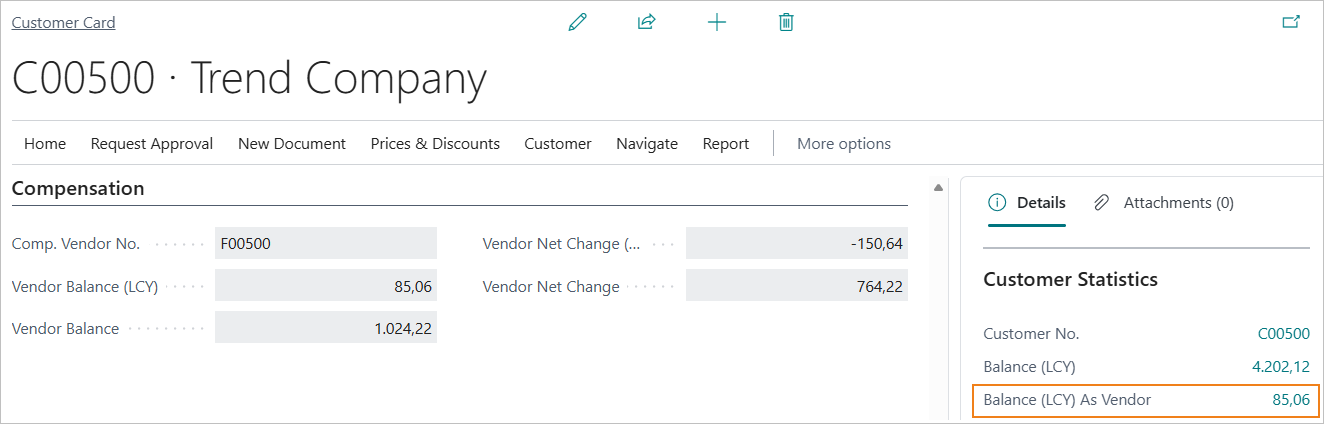
The Customer/Vendor link can be set using the “Comp. Vendor No.” field on the customer card (Compensation section) or, alternatively, by filling in the “Comp. Customer No”. field on the vendor card.
Linking from Customer Card
Linking from Vendor Card
Note
The customer/vendor link must be defined either from the customer card or the vendor card.
Linking via Business Relation on Contact
The customer/vendor link can also be activated by setting a business relation between customer and vendor on the contact.
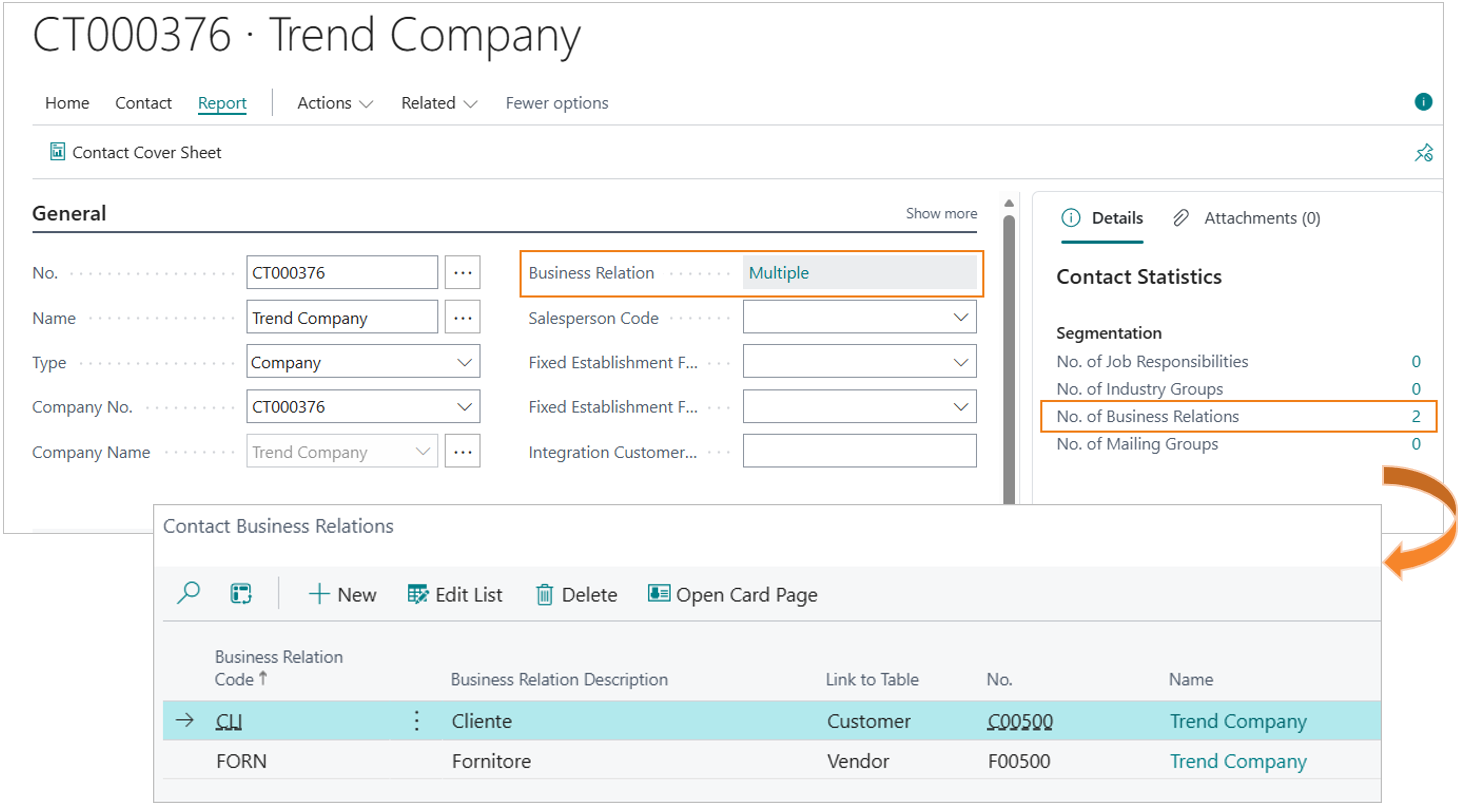
When the link is created through a contact/business relation, the standard Business Central fields “Balance (LCY) as Vendor” and “Balance (LCY) as Customer” are enabled.
Foreign Currency Compensation
The CVC app also supports the compensation of foreign currency transactions.
Compensation is allowed in the same currency or between a foreign currency and EUR.
Compensation is not allowed between two different foreign currencies.
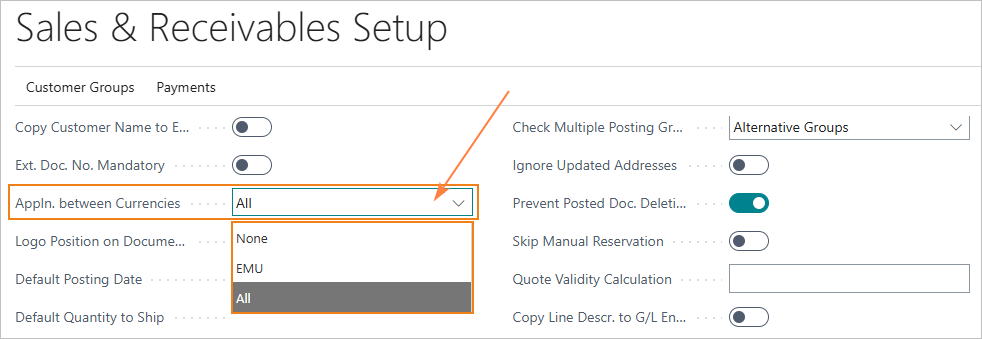
Foreign currency compensation must be enabled both in the Customer Posting Setup and in the Vendor Posting Setup.
In the Currency Application field, the option All must be selected to enable compensation between EUR and all foreign currencies (EU and non‑EU). Alternatively, select EU to enable compensation only between EUR and EU currencies other than EUR.
Feedback
Was this page helpful?
Glad to hear it! Please tell us how we can improve.
Sorry to hear that. Please tell us how we can improve.